My Tax

The 'My Tax' app allows you to view your tax code. For new employees it also allows you to update your tax code information where appropriate

View your tax code information

When you open the app, it will display the tax information Shared Services hold for you. This screen will provide you with an overview of historic changes to your tax code.

The top line will show your current information and any subsequent lines will show you any previous tax codes that we have held for you.

For all rows, you will see the following information:

  • Tax Code – the tax code that was applied for the period
  • Previous Pay – any previous pay for the tax year (from a P45)
  • Previous Tax – any previous tax paid for the tax year (from a P45)
  • Week1/Month1 – an indicator of if your tax code is marked for Week1/Month1 calculations or cumulative calculations
  • Source – where the information on the entry came from
  • Applied From – the date that a row was applied to your record

An example of someone's tax information within ESS

If you do not have the 'Edit Tax Details' button and believe your tax code is incorrect, please contact HMRC directly. You can reach HMRC through your personal tax account.

For more information on your personal tax account go to Gov personal tax account. If any changes are needed, HMRC will send them directly to Shared Services.

Update your tax code

Getting started

The option to 'Edit Tax Details' (update your tax code) will only be available to use if you are a new starter.

You must have your latest P45 to hand before completing this form. The details from your P45 will help determine your tax code. If you do not have a P45, the form will ask you to complete the ‘Starter Checklist’ for PAYE questions.

Edit Tax details

From the 'My Tax' details screen, select the 'Edit Tax details' button in the middle of the of the screen.

An example of how to locate the edit tax details button

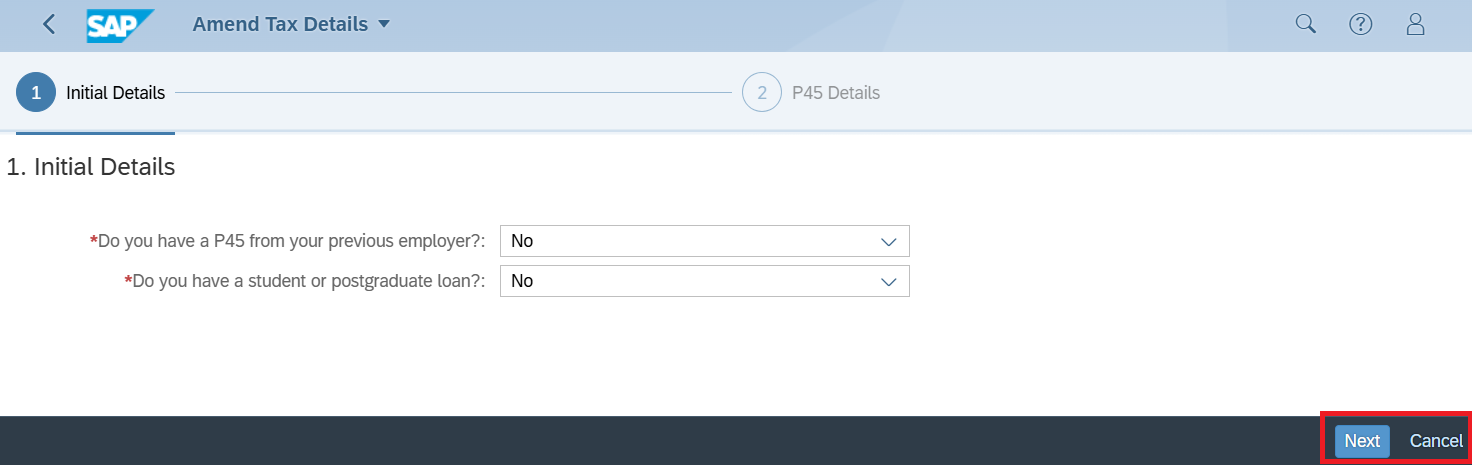
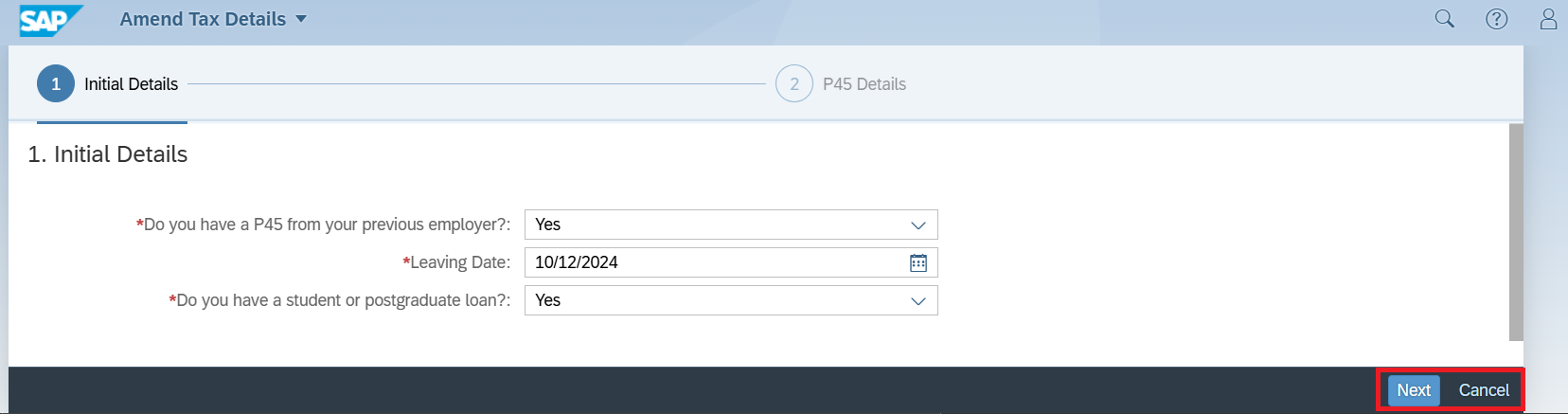
The 'Initial Details' screen will appear for you to complete.

You will be asked to complete the following two questions. Please answer the questions accurately. Note: The form is dynamic, and it will change which fields are displayed based on your responses. Select ‘Next’ to proceed to the next section or ‘Cancel’ to abandon your session.

An example of the initial details fields for your tax information

P45 Details

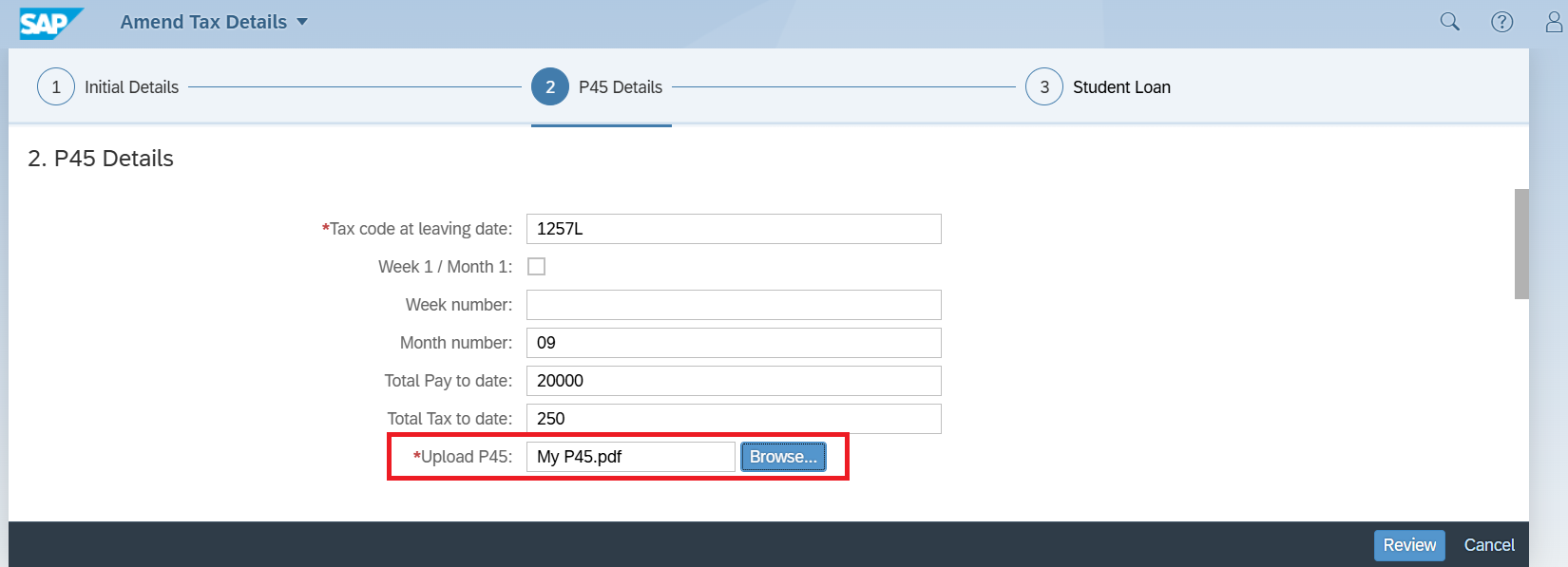
If you have a copy of your latest P45, complete all the fields using the information from your P45, fill out the 'P45 Details' screen. Make sure to attach a copy of your P45, as this is required to proceed to the next section.

An example of the P45 details section

Starter checklist

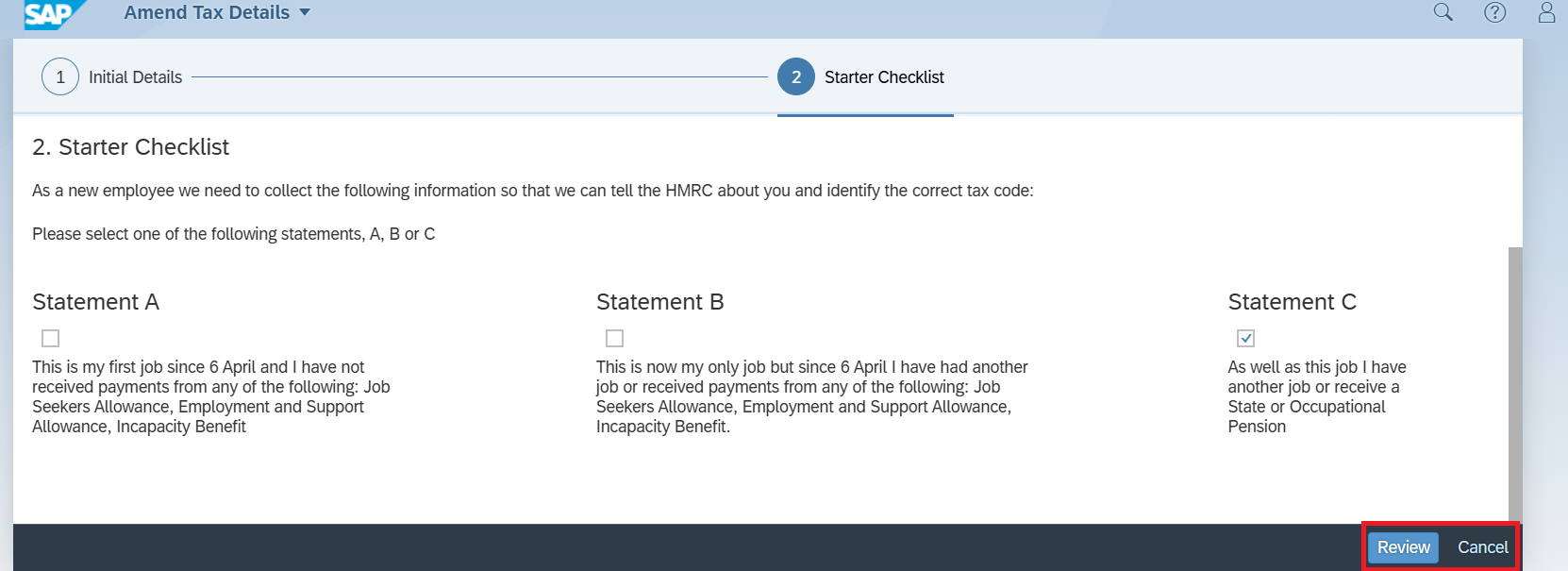
If you indicate that you do not have a P45 or if the information from your P45 cannot be used, you will be presented with the ‘Starter Checklist’ for PAYE questions. It's important to provide accurate information. It allows Shared Services to work out your tax code. This ensures you pay the correct amount of tax.

The initial details for the starter checklist section

An example of the starter checklist required fields

Student Loan

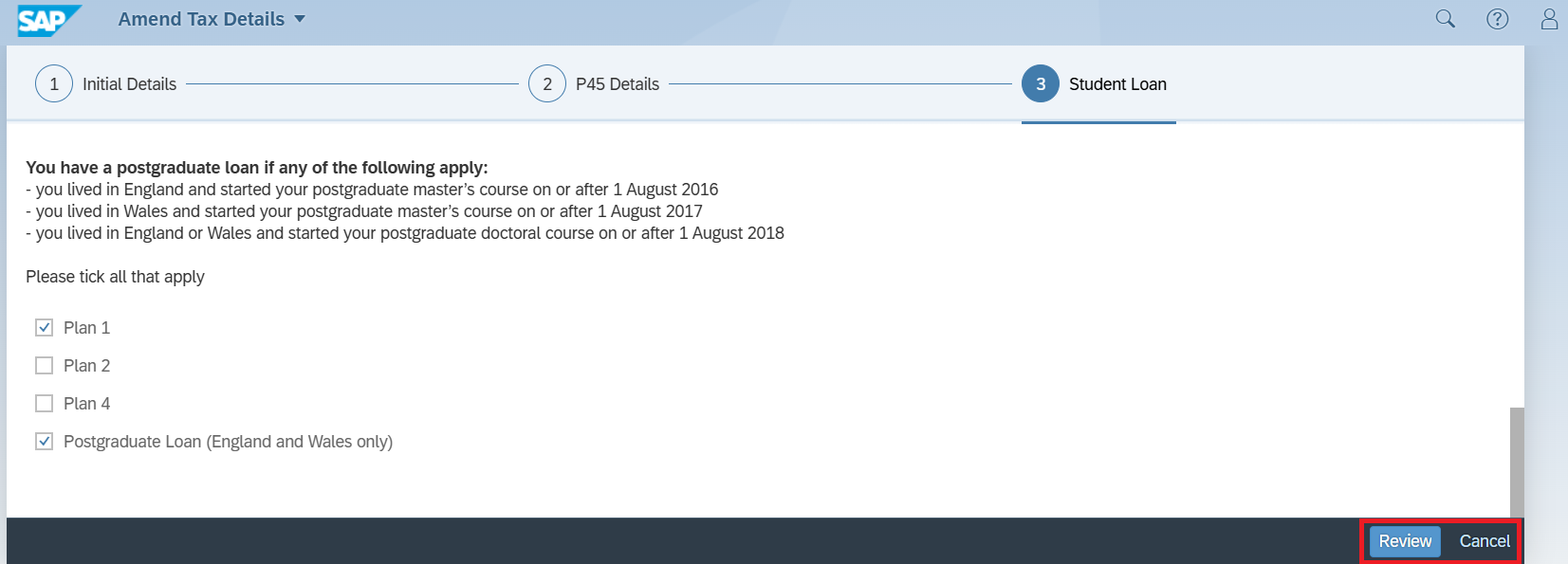
If you indicate that you have Student Loans, you will need to complete the 'Student Loan' section.

An example of the student loan information fields

Note: Ensure that you have ticked all the loans that apply. If unsure of your Plan type, check 'Which repayment plan you're on' on the Gov.uk website for guidance.

Submit the form

When you have completed all relevant fields and sections, select 'Review' in the lower right hand corner.

An example of the submission fields you must use

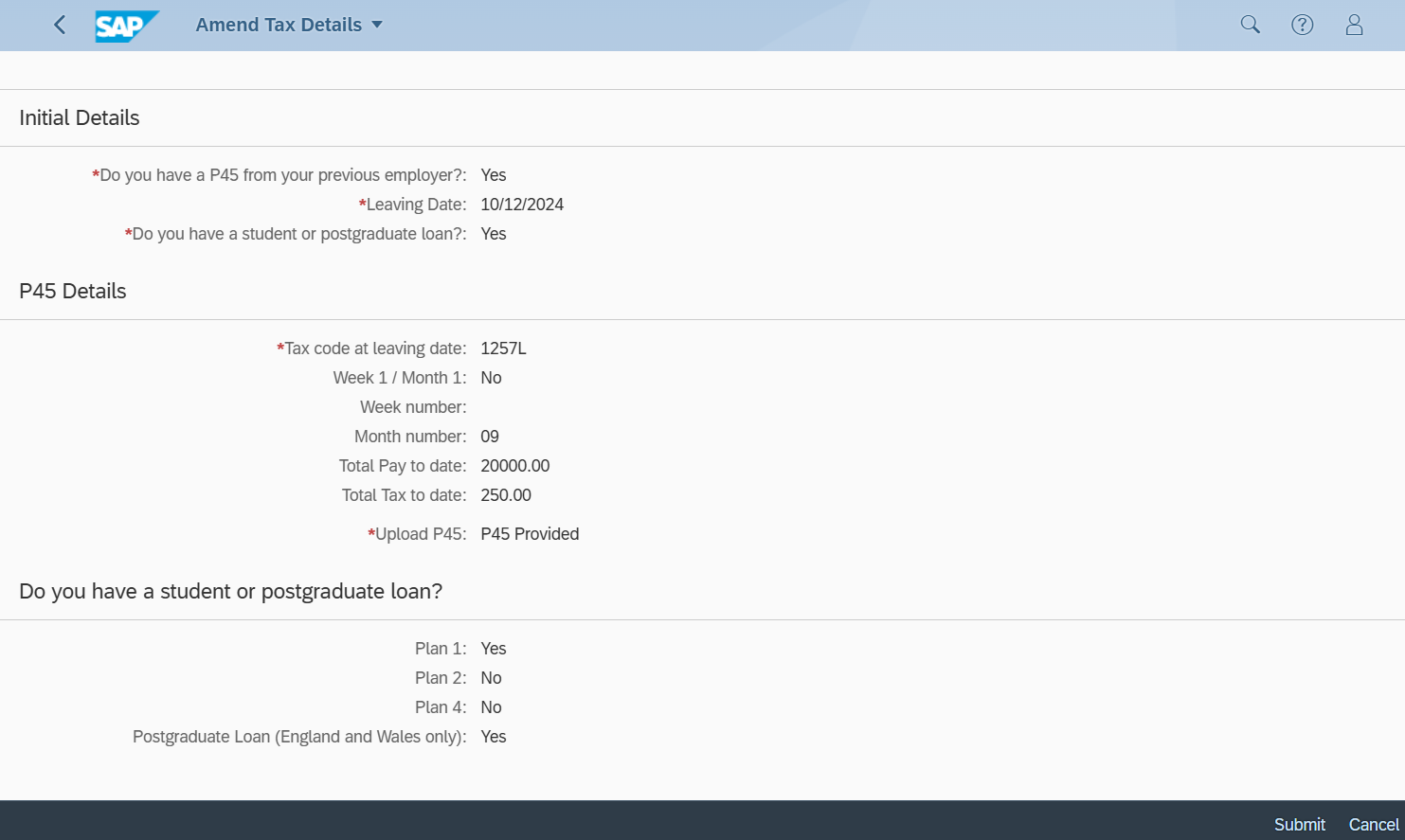
Check the details on the review screen are correct. If you need to make any changes, select ‘Cancel’. Otherwise select ‘Submit’, both buttons can be found in the lower right hand corner.

An Information window will open confirming the update has been successful, select ‘Confirm’.

Know what to do now?

View your tax now