Manage supplier bank and business account details
Within Supplier Self-Service, you can carry out several actions to update the information held for your business. All updates are managed through your supplier profile, so you’ll need to sign in securely before making any changes. The following sections outline the available actions and provide guidance on how to complete them.
Each time you access a secure area to update your details you will be asked to authenticate using a One-Time Passcode (OTP). This is sent via text message to your secure mobile number.
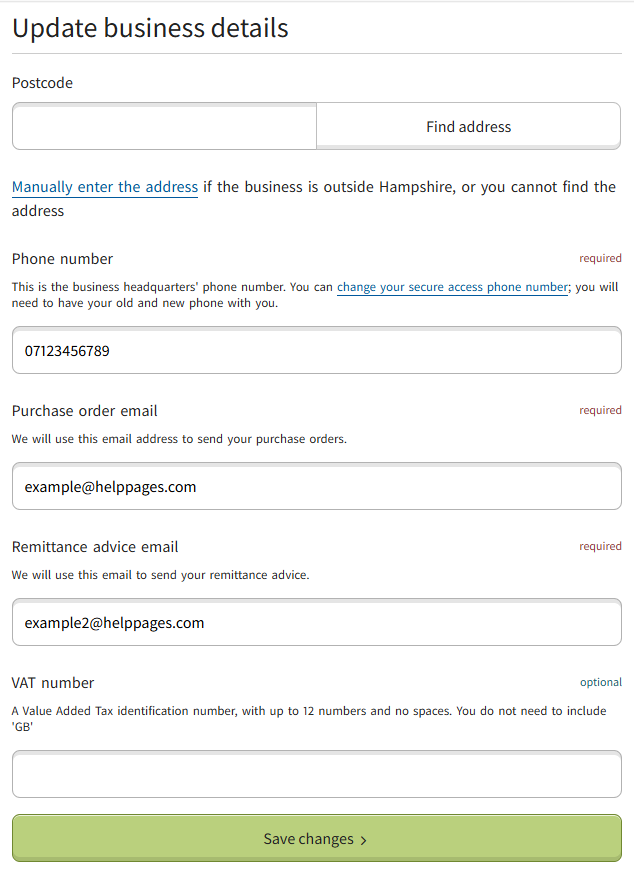
If you have already added your secure phone numbers, you can update the existing supplier business details as shown.
If you need to update your secure number, you will need to confirm the existing number before you can add a new one. Guidance on how to do this can be found on this page.
If you do not have a secure phone number, you will need to make an enquiry to have one added.
- Update business details
-
Here you can update the following types of business details before saving changes:
- phone number
- purchase order email
- remittance advice email
Note: A change of legal entity, change of name, VAT number, CIS or company status cannot be actioned through self-service and requires you to make an enquiry to request a change.
- Update bank details
-
Edit existing bank details
Before you can update bank details, you will need to enter a One Time Passcode (OTP) sent to the secure mobile number held for the account.
Check your SMS spam/junk folders if you have not received an OTP code after generating one.Once you have entered the OTP, you will be asked to enter the old bank details first and press 'Verify bank details'. These are the details currently held on your account.
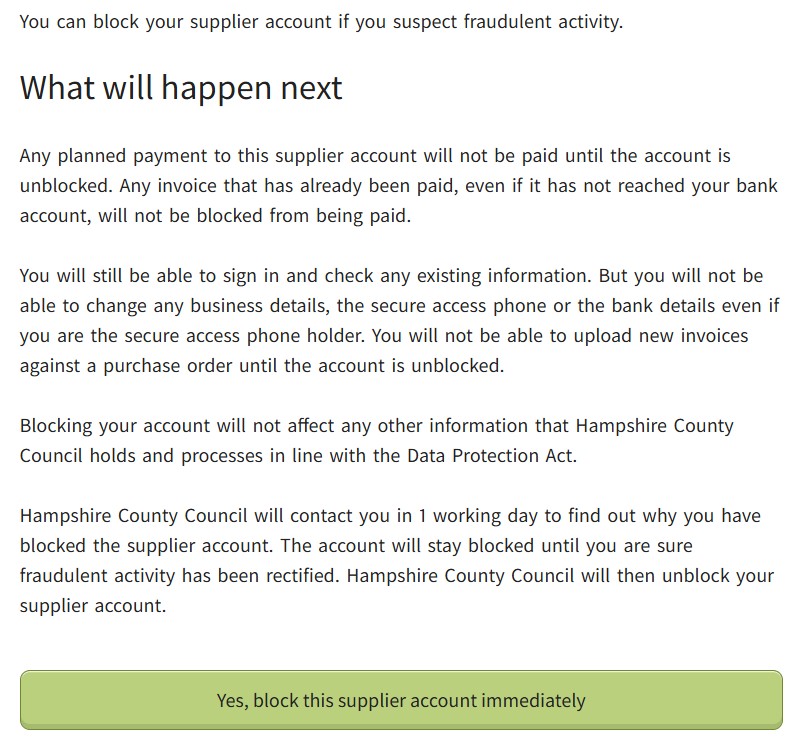
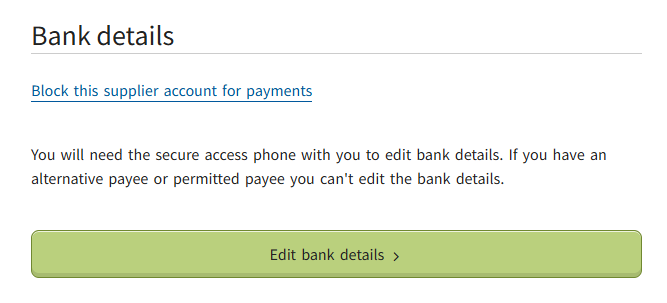
You will be presented with the option to 'Block this supplier account for payments'. This enables you to put a stop on payments going to your bank account if it has been compromised. You can find more guidance on this process on this page.
Add bank details
If you have not previously entered any bank details, press 'Verify statement and go to update bank details'.
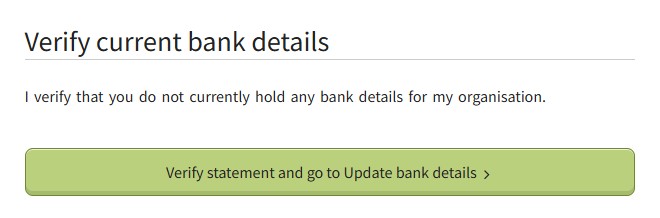
Update your bank details by typing over the existing information. Before submitting, verify that all details are correct, as changes will be applied immediately
If you have an alternative payee or permitted payee you can’t edit the details and will need to make an enquiry.
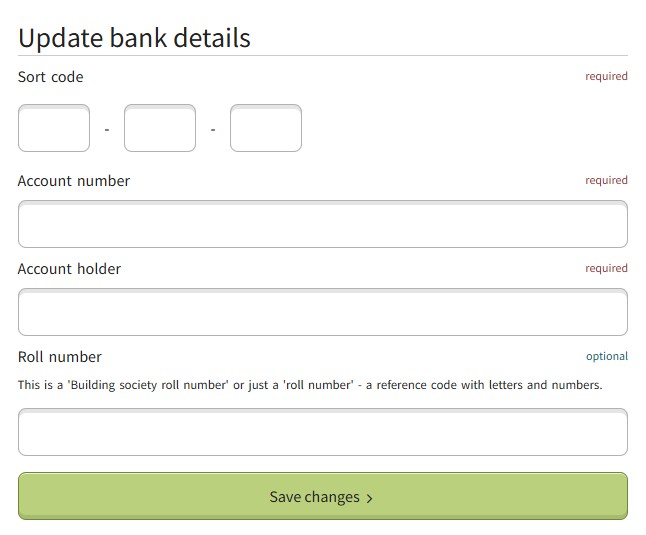
Then press 'Save changes'. You will receive a message verifying your current bank details to the secure control mobile number held on your record.
- Change secure access phone details
-
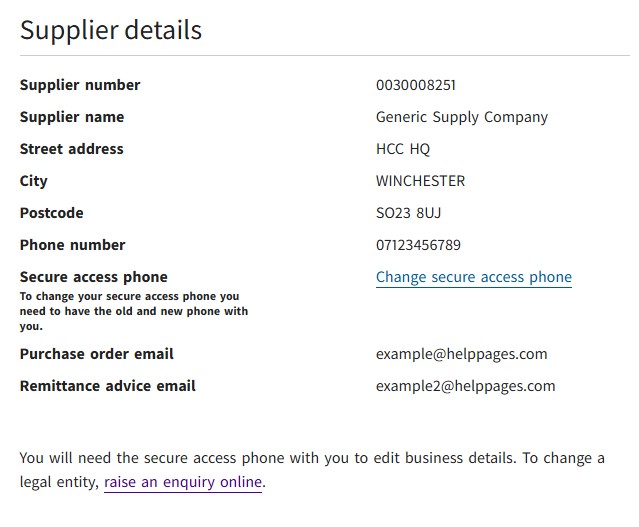
Within supplier details press 'Change secure access phone'. Enter in the OTP sent to the current secure access number. Check your SMS spam/junk folders if you have not received an OTP code after generating one.
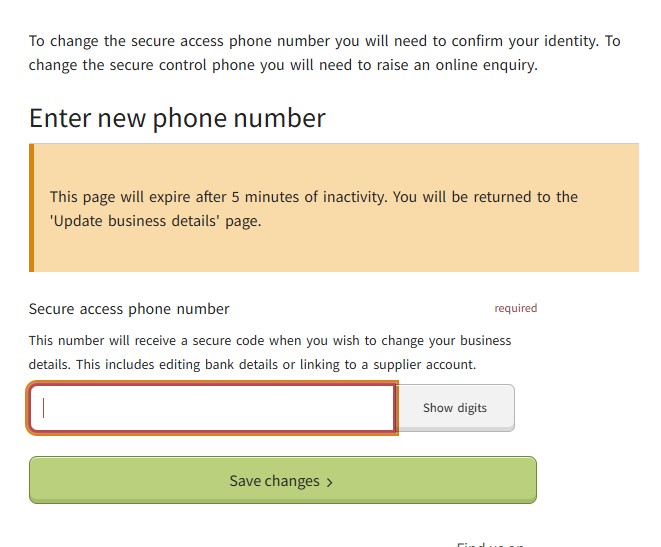
Enter in the new secure access phone number.
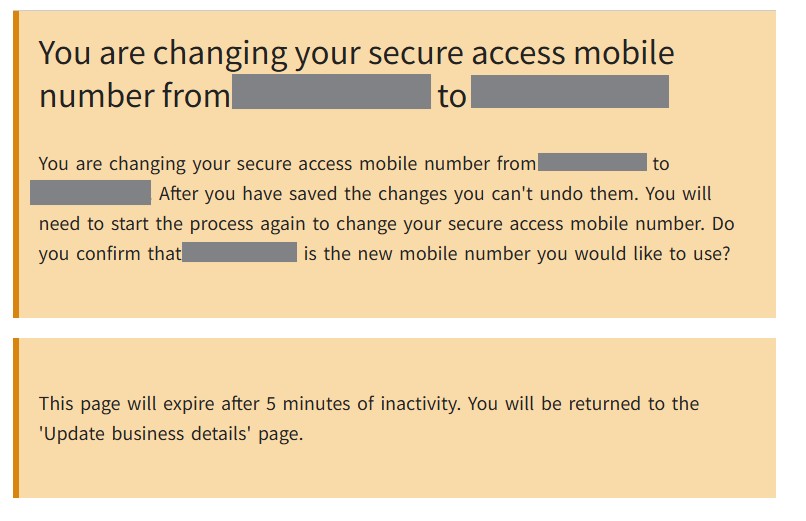
Then press 'Save changes'. You will receive a message verifying your current bank details to the secure control mobile number held on your record.
- Block supplier account for payments
-
You can block payments being made into the bank account e.g. due to suspected fraudulent activity, you have stopped trading.
Once blocked, you will not receive any payments or have purchase orders raised until the blocks are removed. You will need to make an enquiry if you do not know why your account has been blocked.
After confirming 'Yes, block this supplier account immediately', you will receive an SMS informing you of the blocked activity.