
Registration for self-service for existing suppliers
Before you start
To complete the supplier self-service registration, you will need your supplier number. If you do not have your supplier number, check a recent remittance advice or contact your buyer.
- Complete the registration form
-
Open the registration form.
Enter the following details:
- Name: Enter your personal name rather than your company’s name
- Email: Ensure it is one you can access easily. A company email is preferable
- Supplier number
Read the terms and conditions before you select 'Create profile'.
Already registered with us for another supplier account? See the guidance on how to link, switch and delete accounts on the supplier hub.
- Verify your email to set up a password
-
Open the confirmation email, which will be sent to the email address you provided in step 1.
The confirmation email will provide you with a ten-digit user ID. You will need this to log in to Supplier Self-Service.
Select the 'Verify email and create password' link in the email.
Enter your new password when prompted.
A confirmation email will be sent to you once your profile is created and connected to your Supplier account.
If you do not receive the confirmation email, check your junk mail folder. The confirmation email will be from '[email protected]'.
If you have already started the registration process and require a new supplier verification email, you can request a new confirmation email without having to give us your details again.
- Enter one time passcode
-
The one-time passcode will be sent to your remittance email address. It will be six digits long. If a registered mobile number is available, you will also have the option to receive the passcode via text message.
You will need to confirm the one-time passcode. If you have not received the passcode, make an enquiry.
The one-time passcode expires after 5 to 10 minutes. Select the 'resend the one-time pass code' link if a new passcode is required.After confirming the passcode, you will be connected to your supplier account. On the supplier account page, you will be able to view purchase orders, check status of invoices, view payments, find BACS reference number, upload invoices and update business details.
A confirmation email will be sent to you once your Supplier Self-Service account has been created.
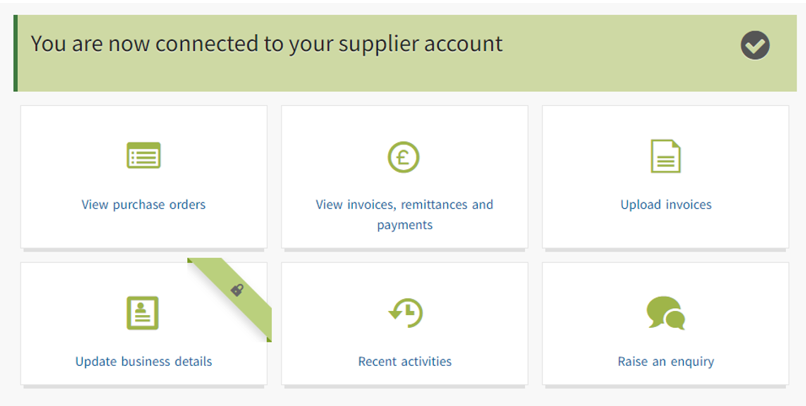
If you do not have a secure mobile phone number on your account, when you visit the supplier profile page you will be prompted to raise an enquiry to provide a secure mobile number. This is only required if you need to update your business details.
Next time you log in to Supplier Self-Service you will not need to confirm any codes. Just enter your user ID and password on the Supplier Self-Service sign in page.
Good housekeeping
Keep your supplier profile, business details, and bank account information up to date. Guidance on how to do this can be found on the Supplier Hub.
If you have had a change of legal entity or a rebranding, make an enquiry.